

In a world where recruiters, clients, and even friends “Google you” before anything else, having control over what shows up for your name is a big deal.
One of the fastest ways to do that used to be Google’s “Add Me To Search” feature, also known as Google People Cards. With a simple “add me to search” query, you could create a small profile that appears directly in Google search results for your name.
However, there’s a catch: many people now complain that “add me to search not showing” is their reality. Either they can’t see the option to create a card, or their existing People Card doesn’t appear in search.
This guide will show you:
• What Google People Cards are
• Who can use “add me to search” and where it actually works
• Step-by-step: how to create your Google People Card
• Why “add me to search not showing” happens and how to fix it
• Specific tips if you’re trying to “add me to search Bangladesh”
• How to optimize your People Card for personal branding
• How to update or remove your People Card
• Frequently asked questions
Let’s start from the beginning.
What Is “Add Me To Search” (Google People Card)?
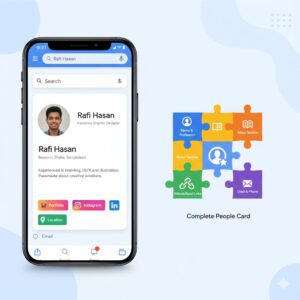
“Add me to search” is a Google feature that lets individuals create a public profile that appears directly in Google search results. Google calls this a People Card.
Think of it as a virtual visiting card or mini bio that appears when someone searches for your name. It usually shows:
• Your name
• Your profession or role
• Your location
• A short “About” section
• Links to your website and social profiles
• Optional contact details such as email and phone number
Real-world example:
Imagine you’re a freelance graphic designer named “Rafi Hasan.” When someone types “Rafi Hasan designer” into Google, instead of just random links, they see this card at the top:
• “Rafi Hasan – Freelance Graphic Designer”
• Based in Dhaka, Bangladesh
• About: “Branding and logo specialist helping startups stand out.”
• Links: Your portfolio site, Instagram, LinkedIn
This gives you instant credibility and directs people to the right places.
Where Is “Add Me To Search” Available?
Here’s where many people get stuck and start searching for “add me to search not showing.”
Google People Cards are officially available only in a few countries:
• India
• Kenya
• Nigeria
• South Africa
If you search “add me to search” or “add me to google” in those countries (on mobile, while signed in), you should see an option to create your People Card at the top of the results.
If you’re trying to use “add me to google search” from other countries, like Bangladesh, the US, UK, or others, you may not see this option at all. That’s one of the main reasons people experience the “add me search” feature not showing.
But there are still ways to try it and alternatives you can use to build your personal presence.
Who Should Use Google People Cards?
Google designed People Cards for:
• Business professionals
• Freelancers and consultants
• Creators and influencers
• Job seekers
• Entrepreneurs and small business owners
• Anyone with a common name who wants to stand out in results
If you’re trying to build a personal brand, get more clients, or make it easier for people to find your official profiles, “add me to search” can be extremely useful.
How To Create Your Google People Card (Step-by-Step)
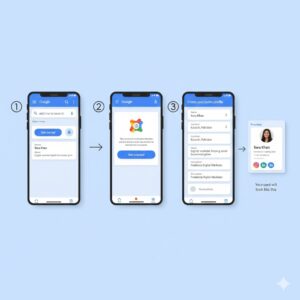
Even if “add me to google search” is not showing for you yet, it helps to understand the complete process. If you’re in an eligible country—or using a workaround—you can follow these steps.
Prerequisites
Before you start, you need:
• A personal Google account (Gmail)
• A mobile phone (Android or iOS) with internet access
• Google app or a mobile browser like Chrome
• Web & App Activity turned on in your Google account settings
• Language set to English or Hindi
Step 1: Search “add me to search” On Mobile
1. On your phone, open the Google app or Chrome.
2. Make sure you’re signed in to the Google account you want to use.
3. Type in: add me to search
If available in your region, you’ll see:
• A prompt at the top: “Add yourself to Google Search”
• A button labeled “Get started”
If you don’t see this, skip ahead to the section “Add Me To Search Not Showing? Here’s Why (And Fixes).”
Step 2: Tap “Get Started” And Fill In Required Details
Once you tap “Get started,” Google will open a form.
You’ll first see the required fields:
• Name: Use the name people normally search for. If you’re known as “Samir Rahman” professionally, use that instead of “Md. Samir A. Rahman.”
• Location: City and country where you live or work.
• About: A short bio (example: “Digital marketer helping small businesses grow with SEO and content.”)
• Job: Your primary role or profession (e.g., “SEO Specialist,” “Life Coach,” “Fitness Trainer”).
Tips for writing a strong “About” section:
Bad: “I am honest and hardworking.”
Better: “SEO strategist specializing in helping local businesses rank higher on Google and convert more leads.”
Be specific about what you do and how you help people.
Step 3: Add Optional Information To Stand Out
Below the required fields, you’ll see optional sections. You don’t need to fill all of them, but more useful detail usually means better visibility.
Common optional fields:
• Work details (company name, designation)
• Education (universities, specialized training)
• Hometown
• Website link (portfolio, blog, business site)
• Social profiles:
– LinkedIn
– Facebook
– Instagram
– Twitter (X)
– YouTube
– Pinterest
– SoundCloud
Real-world example:
If you’re a music producer, you might include:
• SoundCloud profile
• YouTube channel
• Instagram where you share behind-the-scenes content
If you’re a business coach:
• LinkedIn profile
• Personal website with case studies
• Instagram for motivational content
Email and Phone Number
Google may auto-fill your:
• Email address
• Phone number
These come from your Google account. You can choose whether to display them publicly.
• If you work with clients, showing an email or business number makes sense.
• If you’re privacy-conscious, simply don’t display them.
Remember: You usually cannot change the email or phone number in your People Card without changing them in your Google account.
Also Read: BCG Matrix of Berger Paints
Step 4: Preview And Publish Your Card
After filling out the details:
1. Tap “Preview.”
2. Carefully review all information: spelling, links, job title, and About section.
3. If everything looks correct, tap “Save” or “Publish.”
Your Google People Card is now created.
Step 5: Check Your Card In Google Search
After publishing:
• Wait a few minutes to a few hours.
• Search for your name on Google while logged out or using incognito mode.
• Try adding your profession or city: “Your Name + designer,” “Your Name + Dhaka,” etc.
If you’re in an eligible country, your People Card should appear as a box at the top of the search results.
If your card is still not visible after some time, this is where “add me to search not showing” becomes relevant. Let’s look at why that happens.
“Add Me To Search Not Showing”? Here’s Why (And How To Fix It)
There are two very different situations people describe with “add me to search not showing”:
1) The option to create a People Card isn’t showing when you type “add me to search.”
2) Your card already exists, but it’s not appearing in search results.
Let’s tackle both.
1) The “Add Me To Search” Option Is Not Appearing
Reason 1: You’re In A Country Where It’s Not Officially Available
As of now, Google People Cards are officially available only in:
• India
• Kenya
• Nigeria
• South Africa
If you’re in another country, like Bangladesh, USA, UK, Canada, etc., you will usually not see the “add me to search” or “add me to google search” option.
What you can try (workaround)
Some users have reported success by:
• Using a VPN set to India, Kenya, Nigeria, or South Africa
• Using the Google app or visiting google.com on mobile
• Setting the device language and Google language to English (or Hindi in India)
Steps (for example, if you’re in Bangladesh and trying “add me to search Bangladesh”):
1. Install a trusted VPN app on your phone.
2. Set your location to India.
3. Open the Google app or Chrome and go to google.com.
4. Make sure you’re signed into your Google account.
5. Set your language to English (India) in Google settings.
6. Search for: add me to search
Note: Google does not officially support this method, and features can change. Some people manage to create their cards this way; others still don’t see the option. There is no guarantee.
Reason 2: You’re Not On Mobile
“Add me to search” is designed primarily for mobile.
If you search from a desktop/laptop browser, you might not see the option to create or edit your People Card.
Fix:
• Use your phone and the Google app or Chrome.
• Log into the same Google account you want to use for the card.
Reason 3: You’re Not Logged Into Your Google Account
The “add me search” prompt will only appear if you’re signed into your personal Google account.
Fix:
• Open the Google app or Chrome.
• Sign in to your Gmail/Google account.
• Then search “add me to google” or “add me to search.”
Reason 4: Web & App Activity Is Turned Off
Google requires Web & App Activity to be enabled for People Cards.
Fix:
1. Go to your Google Account (myaccount.google.com).
2. Navigate to Data & privacy.
3. Under History settings, turn on Web & App Activity.
4. Then try again: search “add me to search” on mobile.
Reason 5: Language Is Not Set To English Or Hindi
In some regions, the People Card feature is restricted to certain languages.
Fix:
1. In the Google app or browser, go to Settings > Language.
2. Set it to English (India) or another supported variation, or Hindi.
3. Close and reopen the app, then search “add me to search.”
2) Your People Card Exists But Is Not Showing In Results
You created a card, but now when you Google your name, nothing appears. This is another big source of “add me to search not showing” complaints.
Possible reasons and fixes
Reason 1: You Just Created It (Delay In Indexing)
It can take a few hours before Google starts showing your People Card in results.
Fix:
• Wait 2–24 hours.
• Try again with different queries:
– “your name”
– “your name + profession”
– “your name + city”
Reason 2: Your Card Has Very Little Information
Google may choose not to show People Cards that look incomplete or low-quality.
Fix:
1. Search “edit my people card” while signed in.
2. Add more helpful information:
• A clear About section
• Profession and location
• Website and social links
• Education and work details
3. Save and wait a few hours.
Reason 3: It Hasn’t Been Updated For A Long Time
If your card is old and has not been updated or verified for a very long time, Google may stop showing it.
Fix:
• Search “edit my people card” or open your Google Search contributions.
• Update a few fields (About, Job, Links).
• Save the changes.
• Wait some hours and check again.
Reason 4: Policy Or Content Issues
Google has guidelines for People Cards. If your card:
• Contains misleading information
• Uses excessive promotional or spammy content
• Includes unlawful or abusive content
• Violates someone else’s rights
… Google might lower its visibility or stop showing it altogether. In serious cases, they can disable the card.
Fix:
• Edit your card to ensure it reflects who you are and what you do in a factual, respectful way.
• Avoid salesy copy or clickbait.
• Don’t pretend to be another person or use a fake identity.
Reason 5: Search Intent And Name Confusion
If:
• Your name is very common, or
• There is a famous person with the same name
… then Google might show other results first. Your People Card may show only if:
• Someone adds more detail like your city or profession.
• The searcher is in your region.
Fix:
• Add specific details in your card:
– City and country
– Niche/profession (“SEO specialist,” “wedding photographer,” etc.)
• Ask friends to search “your name + profession + city” to see if the card appears.
“Add Me To Search Bangladesh”: What You Need To Know
If you’re in Bangladesh, you’ve likely already noticed that “add me to google search” is not straightforward. Officially, Google People Cards are not yet launched there.
Why “add me to search Bangladesh” often fails:
• The feature is limited to India, Kenya, Nigeria, and South Africa.
• Google may test it in more regions in the future, but nothing is guaranteed or announced.
What you can try:
• The VPN method described earlier (set to India, use mobile, English language, search “add me to search”).
• Even if you manage to create a card, visibility might still be limited or inconsistent.
Alternatives to build your Google presence from Bangladesh
• Create a personal website under your name (e.g., yourname.com).
• Optimize your LinkedIn, Facebook Page, and other profiles so they rank for your name.
• Publish blog posts or guest posts using your full name.
• Use structured data (schema) on your personal site to help Google understand it’s about a person.
In other words, even if “add me search” is not working, you can still appear strongly in Google results using traditional SEO methods.
Best Practices To Optimize Your Google People Card
Once your People Card exists (whether you’re in India or managed it from elsewhere), treat it like a key part of your personal brand.
Here’s how to make it effective:
1) Use The Name People Actually Search For
• If you’re known publicly as “Ayesha Khan,” don’t use “Ayesha M. K.”
• Be consistent across social profiles and your website, so Google connects them more easily.
2) Write A Clear, Benefit-Focused “About” Section
Instead of generic lines, explain:
• What you do
• Who you help
• How you help them
Example:
Weak: “I am passionate about marketing.”
Strong: “Performance marketer helping e‑commerce brands scale profitably through data-driven ads and conversion optimization.”
3) Add Credible Links
Use your People Card to push visitors to the places that matter most:
• Your website or portfolio
• Your main social platforms (LinkedIn, Instagram, YouTube, etc.)
• Your Behance/Dribbble (for designers), GitHub (for developers), etc.
This is how “add me to google” becomes a real personal branding asset.
4) Keep It Updated
Make it a habit to:
• Update your role if you change jobs or start a new business.
• Refresh your About section as your services or niche evolve.
• Add new social links when relevant.
5) Respect Google’s Content Guidelines
To avoid your People Card disappearing:
• Be truthful. Use your real identity.
• Don’t include abusive, hateful, or illegal content.
• Avoid spammy or overly promotional language.
• Respect trademarks and other people’s rights.
How To Edit Or Remove Your People Card
Editing Your People Card
To update or fix your card:
1. Open the Google app or Chrome on your phone.
2. Make sure you’re signed into the same Google account.
3. Search for: edit my people card.
4. Your card will appear with an option to edit.
5. Make your changes and save.
Removal can take a short time to reflect in search.
Removing Your People Card From Google
If you decide you no longer want to show up via “add me to google search,” you can remove your card completely.
Steps:
1. Go to Google.com or open the Google Search app.
2. Sign in to the Google account used to create the card.
3. Search for: edit my people card.
4. Look for the option: Remove my search card from Google.
5. Confirm removal.
Once removed, your People Card and its contents will no longer appear in Google search. Remember: this doesn’t delete other content about you already indexed on the web (social profiles, websites, etc.); it just removes the People Card itself.
Is “Add Me To Search” Still Worth It?
If you live in a supported country or manage to access the feature via a workaround, a Google People Card still gives you:
• A fast, free way to control a key part of your first impression on Google.
• A central place to send people to your website, social profiles, and portfolio.
• Better visibility when you have a common name.
If you’re stuck with “add me to search not showing,” don’t stop there. It simply means you’ll rely more on:
• Personal websites
• Search-optimized profiles (LinkedIn, Facebook Pages, portfolios)
• Consistent, high-quality content under your name
Conclusion
“Add me to search” and Google People Cards were created to solve a common problem: how do ordinary people and professionals build a clear presence on Google, even if they’re not celebrities?
The challenges you’re facing—whether it’s “add me to search not showing,” country limitations like “add me to search Bangladesh,” or a card that doesn’t appear—are mostly about availability and Google’s evolving policies.
To recap:
• People Cards are only officially available in India, Kenya, Nigeria, and South Africa.
• To create one, you need a mobile device, a Google account, Web & App Activity on, and the right language settings.
• If your card or the option to create it is not showing, check your region, device, settings, and content quality.
• Even without People Cards, you can still build a strong Google presence through your own site and well-optimized profiles.
If you treat “add me to google” as one part of a broader personal branding strategy—not the only strategy—you’ll be in a much stronger position long term.
FAQ
1. Why is “add me to search” not showing on my phone?
Common reasons include:
• You’re in a country where People Cards are not officially supported.
• You’re using a desktop instead of a mobile device.
• You’re not signed into a Google account.
• Web & App Activity is turned off.
• Your Google language is not set to English or Hindi.
Check each of these and try again on a mobile device with the correct settings.
2. Can I use “add me to search” in Bangladesh?
Officially, no. Google People Cards are currently available only in India, Kenya, Nigeria, and South Africa. Some users in Bangladesh have used VPNs set to India to create a card, but this is not officially supported and may not work for everyone. Regardless, you should still build your online presence using a personal website and optimized social profiles.
3. How long does it take for my Google People Card to show up?
It can take from a few minutes to several hours. If your card doesn’t appear after 24 hours:
• Confirm you’re searching from a supported country.
• Try searching with your name plus profession or location.
• Add more information to your card and save it again.
4. Why is my People Card not appearing when I search my name?
Possible reasons:
• Your name is very common, and there are more prominent results.
• Your card has minimal information, so Google chooses not to show it.
• It hasn’t been updated for a long time.
• It may not comply with Google’s content guidelines.
Try editing your card using “edit my people card,” add more useful details, and ensure everything is accurate and respectful.
5. What are the content guidelines when creating my People Card?
When creating your People Card:
• Use your real, commonly searched name.
• Provide a truthful description of who you are and what you do.
• Avoid spammy, exaggerated, or misleading claims.
• Don’t use offensive, hateful, or illegal content.
• Respect trademarks and other people’s rights.
Google may temporarily or permanently disable your People Card if it violates these guidelines.
6. How do I edit my Google People Card?
To edit:
1. Make sure you’re signed into the same Google account you used to create it.
2. On your phone, open Google and search: edit my people card.
3. Tap on the card and choose Edit.
4. Update your details and save.
Changes usually appear within a few hours.