


Reposting content on Instagram is a smart way to stay active, build community, and engage your followers — without always needing to create new content from scratch. Whether you’re a brand, influencer, or everyday user, reposting helps amplify voices, celebrate collaborations, and highlight content worth sharing.
In this guide, you’ll learn exactly how to repost Instagram Stories and Posts — both manually and using apps — along with best practices and tips for boosting your reach.
What Does Reposting on Instagram Mean?
Reposting means sharing someone else’s content (with credit) on your own Instagram profile, either through Stories or feed posts.
Difference Between Reposting to Story and Feed
- Story Reposting: Temporary (24 hours) and interactive. Great for quick shares.
- Feed Reposting: Permanent posts on your profile grid. Useful for content you want to showcase long-term.
Manual vs. Automated Reposting
- Manual: Taking a screenshot or screen recording.
- Automated: Using apps like Repost for Instagram, Buffer, or Repost+.
How To Repost Instagram Stories
You can repost Instagram Stories in two ways — if you’re tagged or not.
Reposting a Story You’re Tagged In
- When someone tags you in their Story, you’ll get a DM notification.
- Tap “Add This to Your Story.”
- Customize with text, stickers, or GIFs before sharing.
Reposting a Story You’re Not Tagged In
- If you’re not tagged, you won’t see the “Add to Story” option.
- Ask the person to tag you or take a screenshot and repost manually (don’t forget to credit).
Using Third-Party Tools to Repost Stories
- Use apps like StorySaver or Repost: For Instagram Stories to download and repost stories.
- Make sure to ask for permission before reposting.
How To Repost a Post on Your Instagram Story
This is one of the easiest ways to reshare content.
Share a Public Post to Your Story
- Find the post you want to share.
- Tap the paper airplane icon below it.
- Select “Add post to your story.”
- Customize with text, GIFs, and background colors.
- Tap “Your Story” to publish.
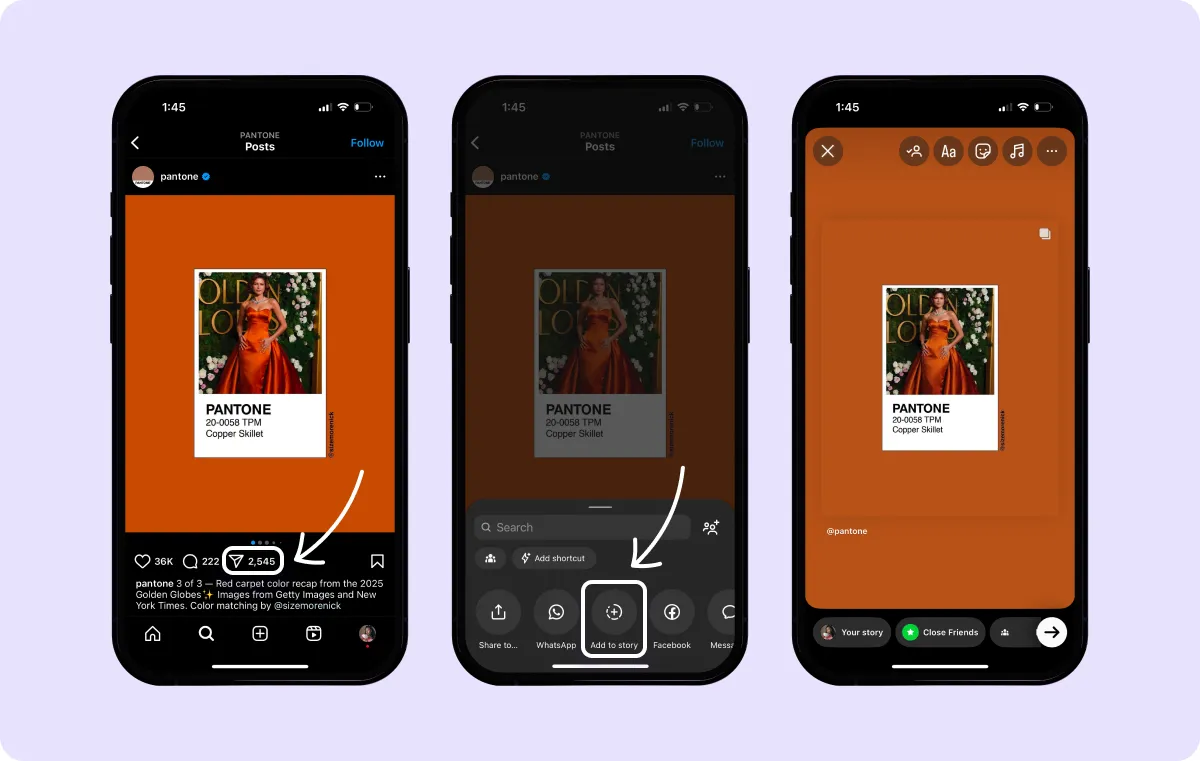
Add Stickers, Text, and Mentions
- Make it engaging by tagging the original creator.
- Use “Mention” stickers to credit and connect.
Creative Tips to Make the Repost Engaging
- Add your reaction.
- Create a poll or question sticker for interaction.
- Use branded colors or fonts to stay consistent.
How To Repost an Instagram Post to Your Feed
There’s no built-in Instagram button for this, so here’s how to do it.
Take a Screenshot or Use a Repost App
- Screenshot the photo or screen-record a video.
- Or, use apps like Repost for Instagram or Regram to automatically copy captions and give credit.
Write a New Caption or Keep the Original
- You can keep the original message or add your own insights.
- Mention the original creator in your caption.
Always Credit the Original Creator
- Tag their handle.
- Add a line like “📸: @username” or “Repost via @username.”
Best Apps To Repost on Instagram
Here are some reliable apps to simplify reposting:
Repost: For Instagram
- Automatically gives credit.
- Easy to copy captions.
Repost+ for Instagram
- Great for reposting multiple types of content.
- Clean UI and one-click sharing.
Buffer and Other Scheduling Tools
- Schedule reposts in advance.
- Add branded captions and hashtags.
Also check: How to Add Original Audio to Instagram Reels (2025 Guide)
Why Reposting Helps Grow Your Instagram
Reposting isn’t just a hack — it’s a strategic move.
Increases Reach and Engagement
- Exposes your profile to new audiences.
- Encourages reciprocal sharing from others.
Builds Community and Relationships
- Shows appreciation for your followers or partners.
- Boosts trust by highlighting real people and their experiences.
Saves Time and Keeps You Active
- Fill your content calendar without creating from scratch.
- Stay consistent during busy times.
When and What Should You Repost?
Reposting only works when the content aligns with your goals.
Share User-Generated Content (UGC)
- Feature customers using your products.
- Celebrate testimonials and real-life results.
Highlight Collaborations and Mentions
- Promote content from partnerships, interviews, or shout-outs.
Reuse Evergreen or High-Performing Content
- Reshare top posts from your own feed.
- Bring back content that’s still relevant.
Reposting Tips and Best Practices
Here’s how to repost the right way.
Always Ask for Permission
- Even public posts deserve a courtesy DM.
- Builds trust and respect.
Never Edit Without Consent
- Don’t crop, filter, or remix without approval.
- Keep the original creator’s integrity intact.
Tag and Credit Properly
- Use @mentions in captions and tags.
- Tag their profile in the image or story.
Maintain Your Brand Voice
- Write captions that still match your tone.
- Add branded elements like logo stickers or colors.
Add Reposting to Your Instagram Strategy
Make reposting a consistent part of your content calendar.
Curate Community Content Weekly
- Pick 1–2 posts a week to reshare from your followers.
Create Themed Repost Series
- Like “Fan Friday” or “Testimonial Tuesday.”
Monitor Tags, Hashtags, and Mentions Regularly
- Search for UGC using branded hashtags.
- Set up alerts to stay updated.
Use Reposting to Fill Content Gaps
- Great for when you’re low on original content or facing a creative block.
Final Thoughts
Reposting on Instagram is an easy yet powerful way to grow your brand, engage your audience, and share the spotlight with others. Whether you’re reposting user-generated content or highlighting a great collaboration, always remember to credit the original creator and stay true to your brand.
The best part? You don’t have to be a designer or influencer to make reposting work for you — just be consistent, thoughtful, and strategic.
FAQs
1. Can you repost someone’s content without permission?
It’s always best to ask. Even if content is public, getting consent avoids any misunderstandings.
2. Do you need a third-party app to repost?
Not always. You can use Instagram’s built-in story share feature, or manual methods like screenshots.
3. Can you repost from private accounts?
No, unless the person sends you the content directly and gives permission.