


Schema markup (structured data) helps search engines understand your content better—and can lead to eye-catching rich snippets in search results. Whether you’re publishing articles, product pages, recipes, or FAQs, adding schema boosts your SEO visibility and sets you apart.
In this post, I’ll walk you through 5 top schema plugins for WordPress, highlight how they stack up, and help you choose the best fit for your site—no developer skills required!
How We Chose These Plugins
- Ease of Use – intuitive setup, clean interface, minimal coding
- Supported Schema Types – breadth of markup types like Article, FAQ, Product, LocalBusiness
- Compatibility – plays well with themes, page builders, other SEO plugins
- Schema Quality & Validation – clean, accurate output that passes rich result tests
- Performance Impact – lightweight plugins that don’t slow down your site
- Extra Features – auto markups, WooCommerce support, schema templates, support/service quality
Top 5 Schema Plugins for WordPress
1. Schema & Structured Data for WP & AMP
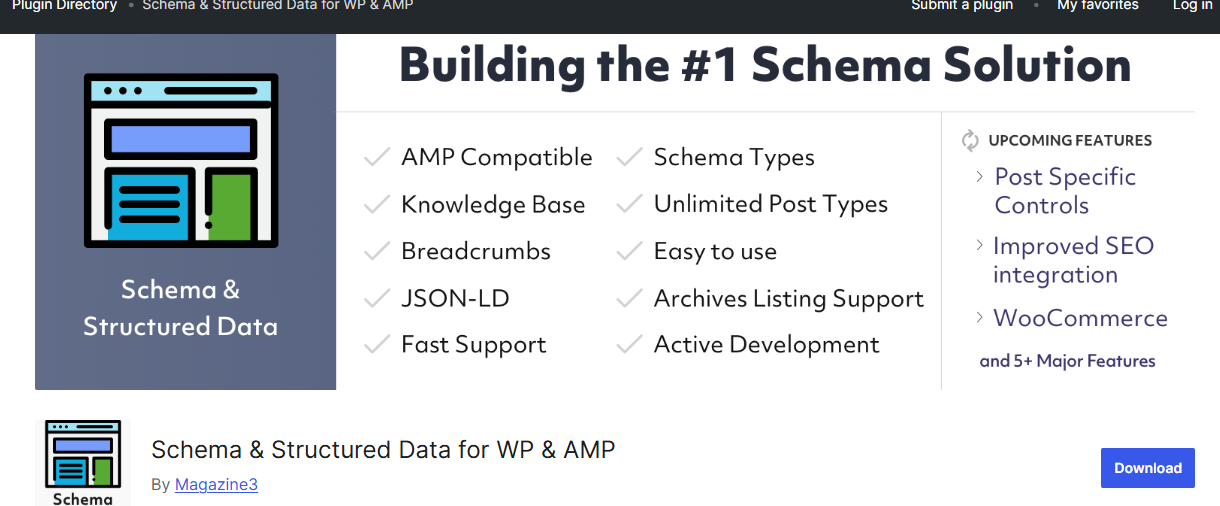
A powerhouse plugin offers a wide range of schema types and rich features.
Supported Schema Types: Article, FAQ, HowTo, Review, Product, LocalBusiness, JobPosting, and more.
Ease of Setup: Easy setup wizard, templates for posts/pages, automatic detection for some content types.
Pros:
- Extremely comprehensive schema coverage
- AMP support
- Template builder for consistent markup
Cons / Limitations:
- Interface can feel busy for first-timers
- Advanced features often require the pro version
Best For: Multi-purpose bloggers, businesses with various content formats.
Quick Setup Example: Install → run wizard → select content types → assign templates.
2. Yoast SEO (Built-In Schema Enhancements)

A heavyweight SEO plugin with integrated schema support.
Supported Schema Types: Organization, WebSite, Article, Breadcrumb, FAQ (via block), HowTo.
Ease of Setup: Already familiar to many—enabled automatically when active.
Pros:
- No extra plugin needed if you already use Yoast
- Seamless integration with site SEO settings
- New block editor-friendly blocks like FAQ, HowTo
Cons / Limitations:
- Limited schema types compared to dedicated plugins
- Less control over advanced schema output
Best For: Bloggers and small businesses who already rely on Yoast SEO.
Quick Setup Example: Install → Yoast handles schema automatically → use blocks like FAQ.
3. All in One Schema Rich Snippets
A light, focused plugin for basic schema “snippets.”
Supported Schema Types: Review, Event, People, Product, Recipe, Video, Article, Software Application.
Ease of Setup: Super minimal—choose type, fill out fields, done.
Pros:
- Simple, clean interface
- Free, lightweight, ideal for minimal use
Cons / Limitations:
- Less flexibility or automation
- No schema templates or advanced configuration
Best For: Beginners who want “quick and simple” schema for specific posts.
Quick Setup Example: Install → pick schema type per post → fill out fields → save.
4. Schema Pro

A premium-grade plugin aimed at power users.
Supported Schema Types: Over 13 types including Article, FAQ, Review, Recipe, Product, Event, Course, LocalBusiness.
Ease of Setup: Clean template builder with conditional rules (e.g., “apply this schema if post category = X”).
Pros:
- Smart conditional templates
- Great for large sites or custom schema needs
- Supports predefined schema categories and WooCommerce
Cons / Limitations:
- 100% paid (no free version available)
- Pricing might not suit casual bloggers
Best For: Agencies, developers, or businesses needing scalable markup.
Quick Setup Example: Install → build template → set conditions → auto-apply to posts.
5. Rank Math SEO (Schema Module)

SEO plugin with built-in modular schema support.
Supported Schema Types: Article, Event, Product, FAQ, Course, JobPosting, LocalBusiness, HowTo, Review, Recipe.
Ease of Setup: Turn on Schema Module → select schema preset per page/post.
Pros:
- Broad schema coverage
- Modular design—you enable only what you need
- Great UI integration with block editor
Cons / Limitations:
- Slight learning curve if new to Rank Math
- Some advanced features are locked behind paid tiers
Best For: Users wanting strong SEO suite + schema in one plugin.
Quick Setup Example: Install → enable Schema module → choose schema type when editing content.
Comparison Table
| Plugin Name | Free / Pro | Schema Types Covered | Ease of Use (1–5) | Performance Impact | Best For |
| Schema & Structured Data for WP & AMP | Free + Pro | Very wide | 3.5 | Moderate | Multi-format sites with diverse needs |
| Yoast SEO (Schema enhanced) | Free + Premium | Basic types | 5 | Low | Existing Yoast users |
| All in One Schema Rich Snippets | Free | Select snippet types | 5 | Very low | Beginners; minimal setup |
| Schema Pro | Paid | Very wide + conditional templates | 4 | Moderate | Large/custom sites with complex rules |
| Rank Math SEO (Schema Module) | Free + Pro | Very wide | 4 | Low–Moderate | SEO-focused users valuing flexibility |
How to Choose the Right Plugin for You
- Beginner / minimalist needs → pick All in One Schema Rich Snippets for quick, easy markup.
- Comfortable with Yoast or Rank Math → stick to your existing SEO plugin for seamless schema.
- Managing content across many types (recipes, products, FAQs, etc.) → go with Schema & Structured Data for WP & AMP or Schema Pro for templates and automation.
- Running a WooCommerce or large site → Schema Pro or Rank Math with schema module gives you more advanced control.
- Concerned about speed → choose lightweight options like All in One Rich Snippets or the schema modules in Yoast/Rank Math.
Quick Setup Workflow (General)
- Install your chosen plugin via Plugins → Add New in WordPress.
- Run setup wizard or enable schema module depending on plugin.
- Create templates or assign schema types for content (either manually per post or via auto templates).
- Test your markup using Google’s Rich Results Test or Schema Markup Validator.
- Monitor your site performance, and ensure there are no errors in Search Console → Rich Results.
Tips for Maximizing Schema Impact
- Keep your schema types relevant to the content (e.g. don’t use Product schema on a blog post).
- Re-test when making layout changes or installing new plugins.
- Use structured inner content (like FAQ blocks) along with schema markup for better rich results.
- Avoid overlapping schemа from multiple plugins.
- Combine schema with other SEO best practices: clear headings, fast page speed, clean metadata.
Conclusion
Schema markup can seriously boost how your site appears in SERPs—and with the right WordPress plugin, you don’t need to touch any code. Whether you’re after a lightweight tool, seamless integration with your SEO suite, or powerful templating for complex needs—you now have five great options.
What are you using—or planning to try? Share your experience in the comments below!
FAQ
Q: Can I use multiple schema plugins together?
A: It’s not recommended—different plugins may generate duplicate or conflicting markup.
Q: How can I test if my schema is working?
A: Use Google’s Rich Results Test or the Schema Markup Validator to check for errors and valid markup.
Q: Are there free options?
A: Yes—All in One Rich Snippets is completely free, while Yoast and Rank Math offer schema features in their free versions. Others like Schema & Structured Data for WP & AMP offer a mix of free and paid features, and Schema Pro is paid-only.

Passionate about blogging and focused on elevating brand visibility through strategic SEO and digital marketing. Always tuned in to the latest trends, I’m dedicated to maximizing engagement and delivering measurable ROI in the dynamic world of digital marketing. Let’s connect and unlock new opportunities together!